



Estimated reading time: 5 minutes
Key points:
- The Knowledge Assistant answers questions from your organisation's documents and names the source with every answer, down to document name and page.
- Your documents stay where they are: you connect SharePoint, Drive or Nextcloud and the assistant keeps them up to date.
- Questions without an answer become visible as knowledge gaps, so you know which document is still missing.
Table of contents
- The problem: knowledge that stands still
- What is the Knowledge Assistant?
- How it works: three steps
- You see where your knowledge falls short
- It sounds like your organisation
- Three situations where it proves itself
- Frequently asked questions
The problem: knowledge that stands still
In many organisations the knowledge lives in the heads of a few people. New colleagues search endlessly, experienced colleagues get interrupted all day, and the moment those few people go on holiday everything stalls. The documents usually exist, but they are spread across SharePoint, mailboxes and network drives, and nobody knows exactly where.
Customer service has its own version of this: customers keep asking the same questions, and the answer sits in a manual nobody opens.
What is the Knowledge Assistant?
The Knowledge Assistant reads your organisation's documents and answers questions about them, for your team or for your customers. Every answer names the source, down to document name and page, so anyone can check where it came from. An answer with a source, rather than a guess.
A standard chatbot gives standard answers. This assistant knows your documents, your agreements and the way you talk, because it runs on your own sources.

How it works: three steps
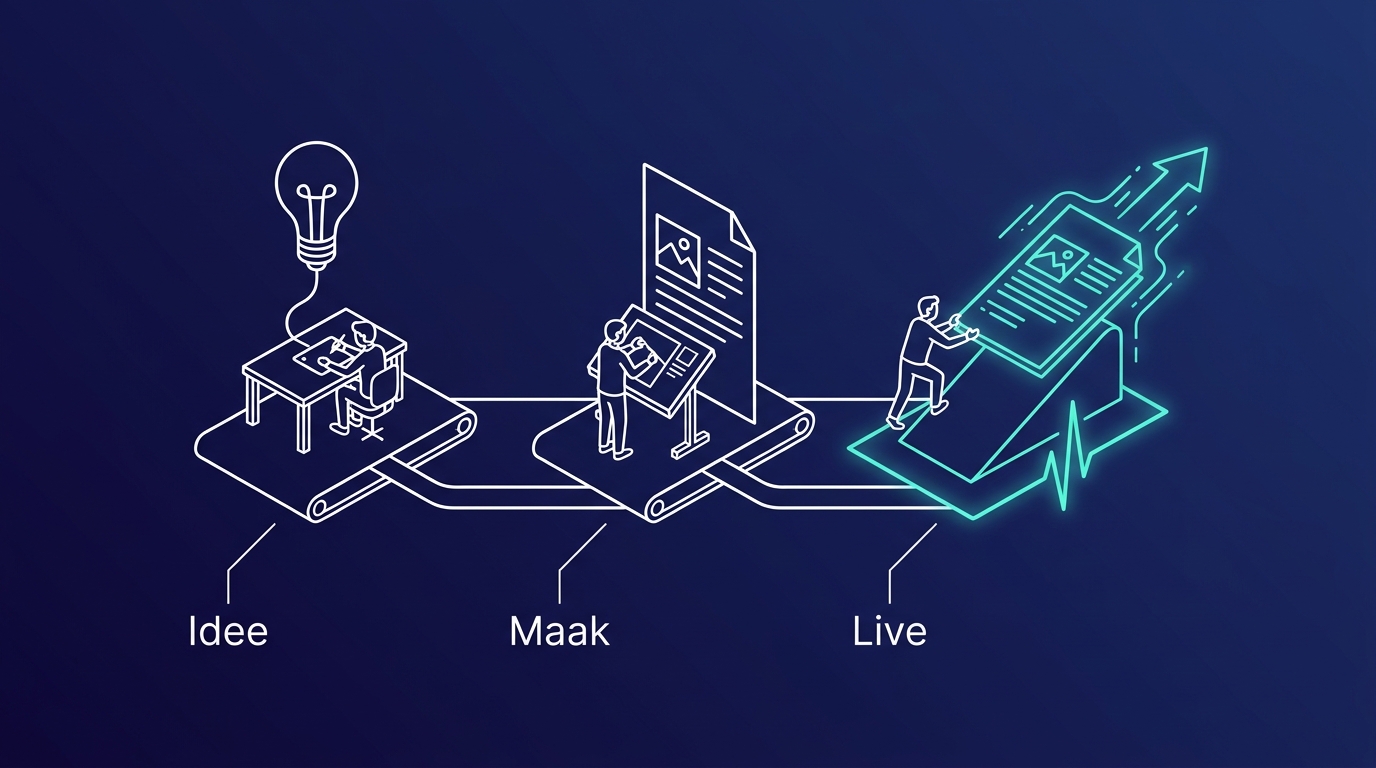
We set it up. After that you manage it yourself, without needing a developer.
1. Connect your sources
You connect the systems you already use: SharePoint, OneDrive, Teams and Outlook on the Microsoft side, or Google Drive and Nextcloud. Individual uploads, folders and your own website work too. The assistant indexes what you point it at and keeps the sources up to date afterwards. There is no migration and no second archive to maintain.
2. Set tone and access
You give the assistant a name, your colours and a tone of voice. Per space you decide which documents take part and who has access. Management can consult different sources than the service desk, and a customer only sees what is meant for customers.
3. Ask questions
Internally your team asks questions through the chat; externally the widget on your site answers customer questions. In the admin you see what is being asked and where the assistant had no answer.
You see where your knowledge falls short
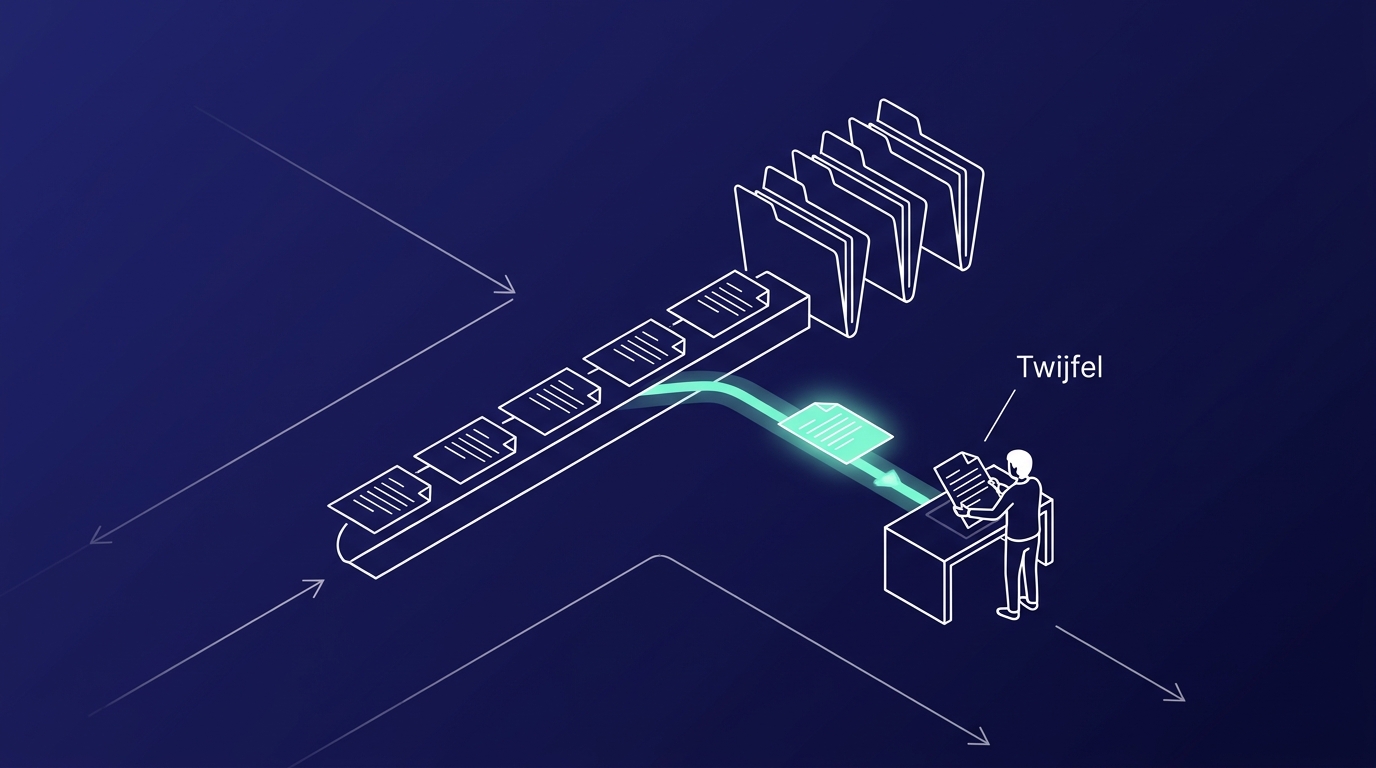
Every question without an answer is a gap in your knowledge. Normally those questions vanish into hallway conversations; here they are listed as knowledge gaps: topics no document covers yet. On top of that, anyone can give feedback per answer, for instance that it is wrong, incomplete or outdated.
That way the assistant keeps improving after launch, and you know exactly which document to write next. You also see which topics are asked about most, and you adjust the assistant's behaviour without a new release.
It sounds like your organisation
The assistant carries your name and your colours, and talks the way you talk. The tone is adjustable: formal, informal or friendly. You set the welcome message and the suggested questions, and a live preview shows immediately what a setting does.
Three situations where it proves itself
Wherever people keep looking up or asking around for the same things, there is something to gain. The three situations we see most often:
- Customer service. The assistant sits on your site as a widget and answers the standard questions, outside office hours too. What it does not know reaches you as a knowledge request or a lead.
- Collaborating organisations. If you work with other institutions, nobody has to visit eight websites anymore. One entry point, and every answer shows which document it came from.
- Internal. Knowledge that lives in three heads stands still the moment those three people are away. Put it in one place, make it queryable, and everyone moves on without interrupting anyone first.
Want to see it in action? In a half-hour demo we walk you through the assistant on a fully set-up environment, with someone who built it. We will tell you honestly if it is not a fit.
Frequently asked questions
Where do our documents live?
Where they live now. You connect SharePoint, OneDrive, Google Drive or Nextcloud and the assistant indexes what you point it at. There is no migration and no second archive to maintain separately.
What happens when the assistant does not know the answer?
Then it says so, instead of making something up. The question is logged as a knowledge gap, so you can see which topic still lacks a document. On your website such a question can reach you as a knowledge request or a lead.
Does everyone see everything?
No. The assistant works with spaces: per space you decide which documents take part and who has access. Internal files stay internal, and the widget on your site only consults the sources you opened up for it.
Can customers use it on our website too?
Yes. Next to the internal chat there is a widget for your website, in your own branding and tone. It answers customer questions around the clock from the sources you assigned to it.

Want to apply this in your own organization?
In a no-obligation conversation we look at which tasks take up most of your team's time, and whether AI can safely take them over or speed them up. We respond within 24 hours.
Book an intro call